Using PATCH to update content assets
When you configure an Amplience CMS Salesforce Commerce Cloud (SFCC) content asset integration you can specify how your content assets are managed, so you can choose a method that fits in with your workflow. You can choose an update method of "PUT" or "PATCH".
If you choose PUT, a content asset will be created or overwritten in SFCC Business Manager when you publish a content item in Amplience CMS.
If you choose PATCH, a content asset will be created if it does not exist, but partially updated if it does exist. This enables a range of workflows.
- You can choose to create assets in SFCC and then update the HTML body and specified fields from Amplience CMS. (the HTML body will always be overwritten).
- Another approach is to create content items in Amplience CMS, then update the corresponding content assets in SFCC by editing custom fields. Further updates could then be made via Amplience CMS without overwriting those custom fields in SFCC.
You should use PATCH if you need to manage some content asset fields in SFCC Business Manager. If the content assets will be managed solely through Amplience CMS you can use PUT, which is the default.
On this page we'll explain how to use the "PATCH" update method.
The other examples use "PUT" as the update method and support the workflow where you create or overwrite a content asset in SFCC when you publish a content item in Amplience CMS.
Choosing the update methodLink copied!
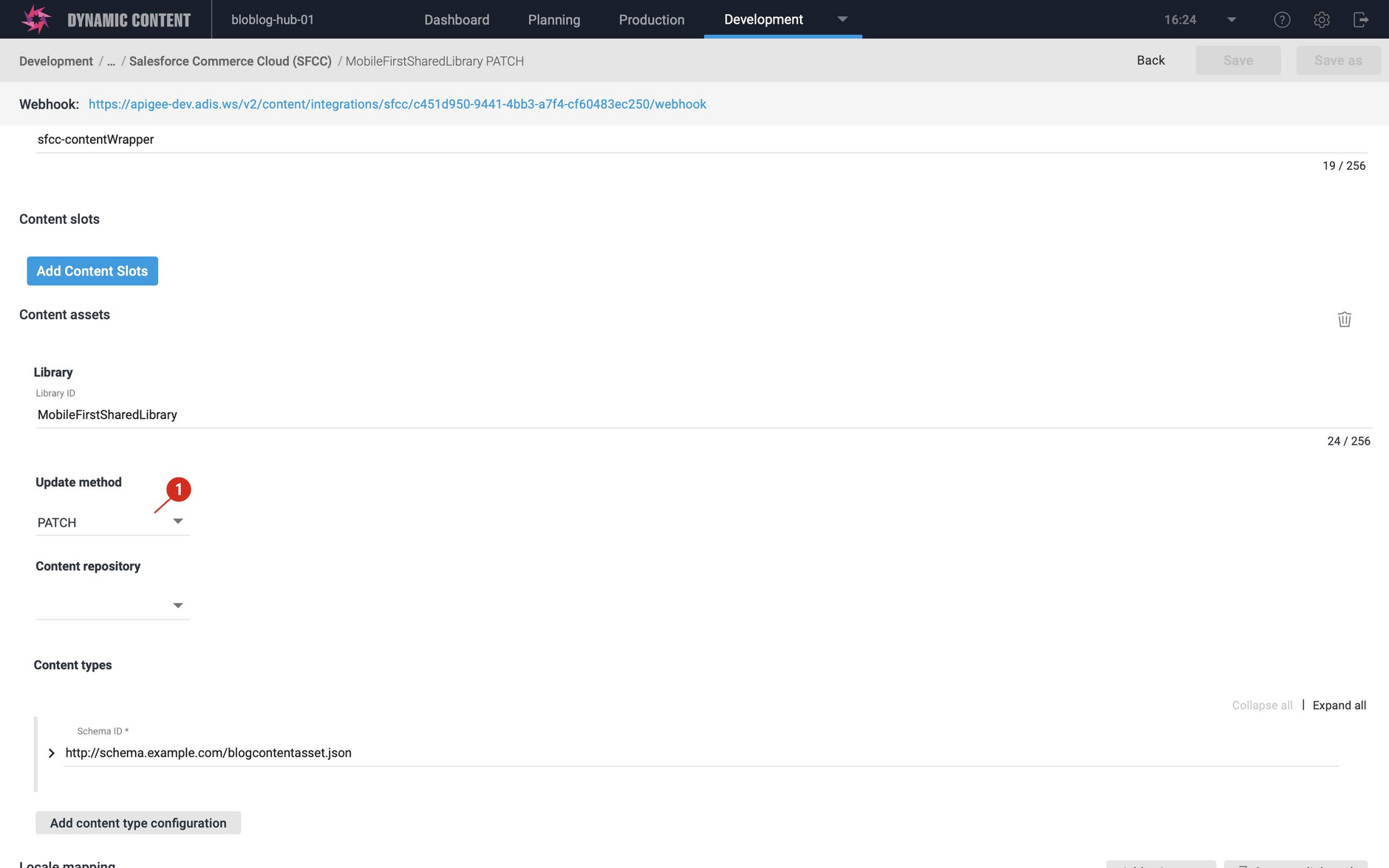
In your SFCC content asset configuration, the update method field provides a choice of either "PUT" or "PATCH". In the example we'll look you want to create your assets in SFCC and update the assets from Amplience CMS so we'll choose "PATCH" (1 in the image below).
Choose "PUT" if you want to create or overwrite a content asset in SFCC each time you publish a content item in Amplience CMS.
Creating a content asset in SFCC Business ManagerLink copied!
In this example we're using PATCH as the method to update content assets that are first created in SFCC Business Manager. You'll create your content assets and populate the fields that you want to manage from SFCC.
An example content asset (a blog asset) is shown below. Note that it has an ID of "created-in-sfcc" and we'll use this ID when we create a content item in Amplience CMS.
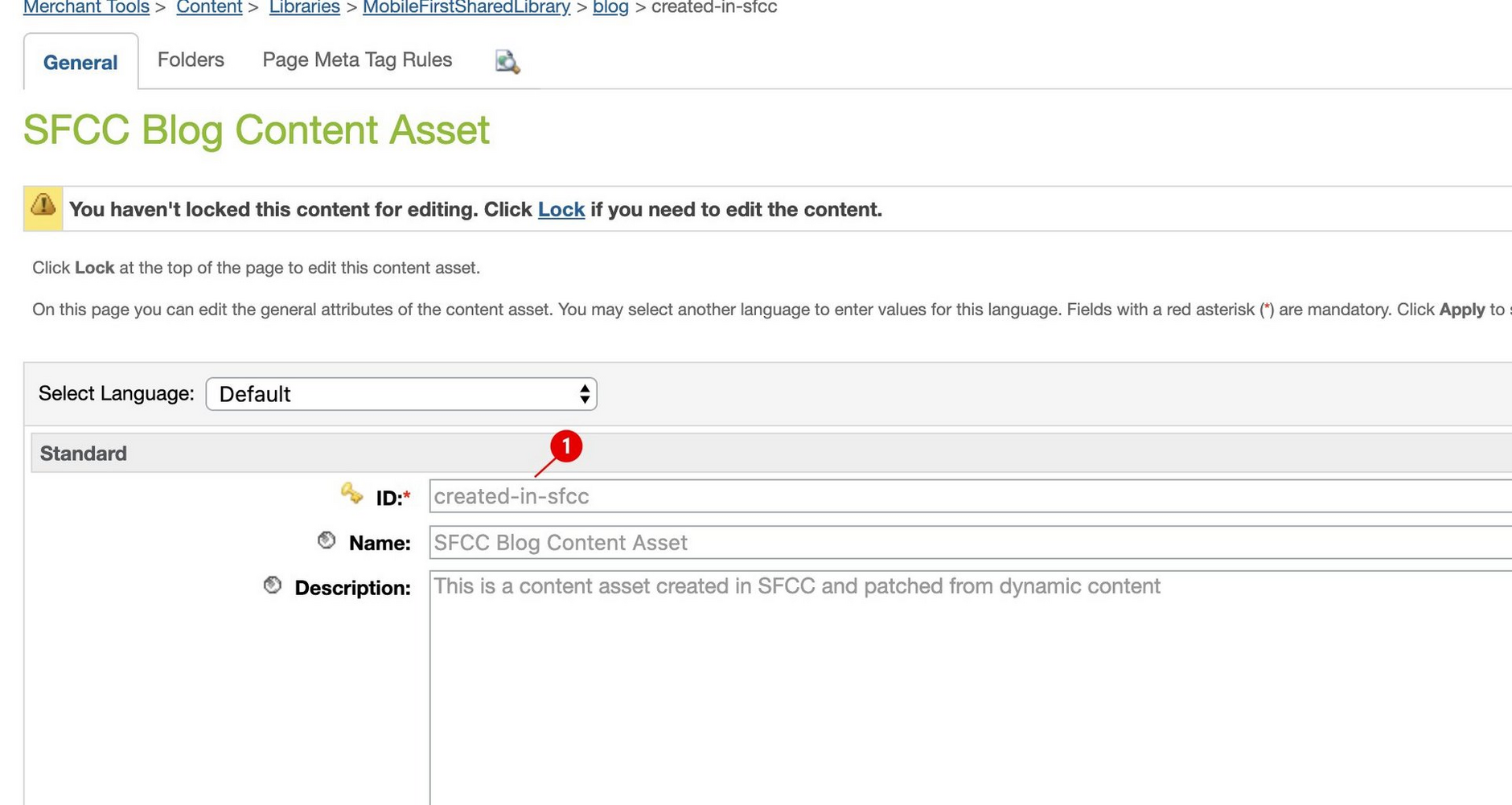
When you've populated a content asset in SFCC you then need to lock it for editing. This allows the content asset to be updated from Amplience CMS.
Updating the content assetLink copied!
In Amplience CMS, create or update a blog content item with an ID property that matches the content asset you want to update. In the previous step we created a content asset with the ID of "created-in-sfcc" and to update this asset from Amplience CMS we need to create and publish a content item with the same ID.
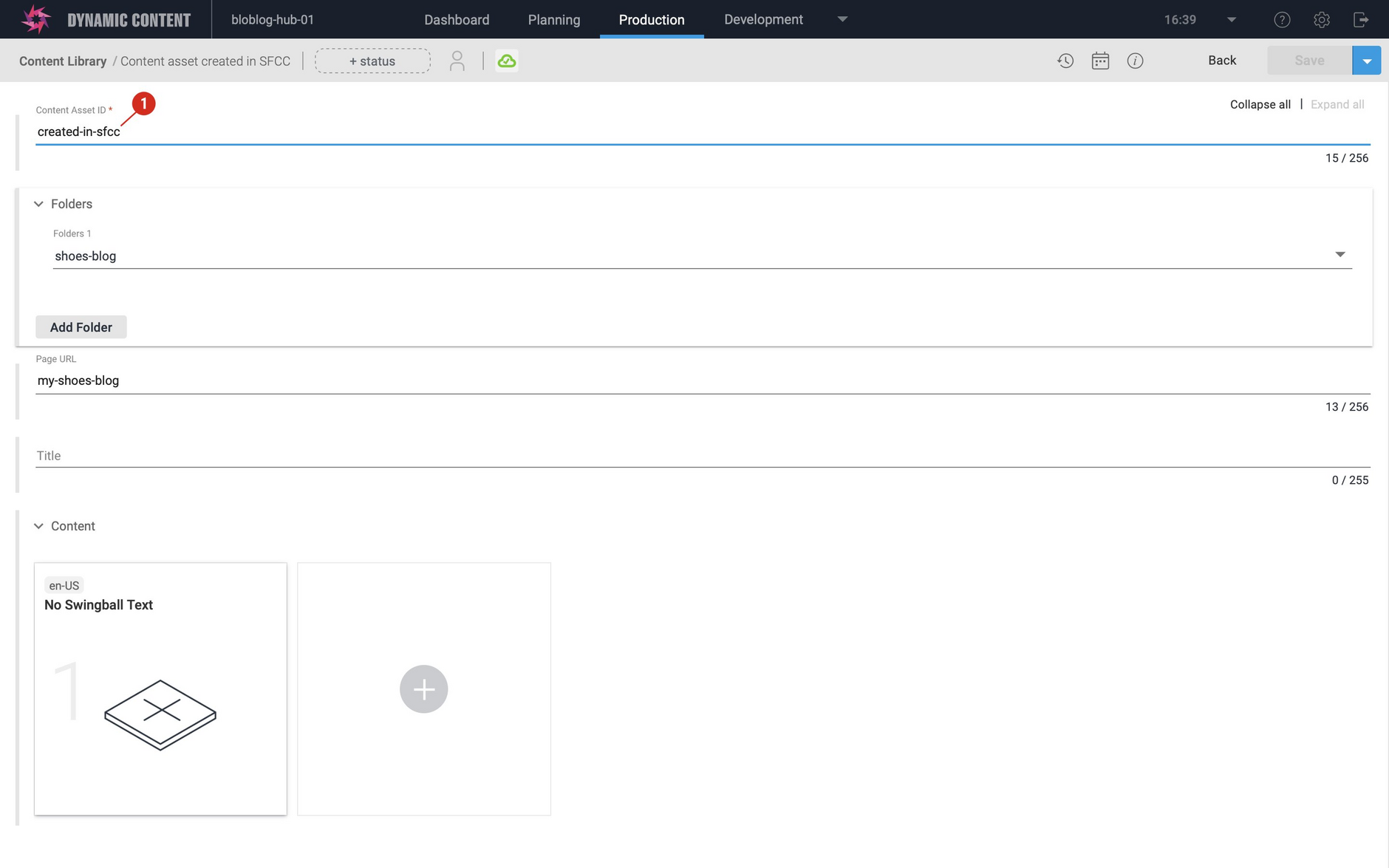
In this example specific content asset fields, together with the content asset body (the HTML) are managed in Amplience CMS, while the other fields are managed in SFCC Business Manager. Any fields managed in Amplience CMS must be mapped in the field mappings or localized field mappings in the field mapping for a content type.
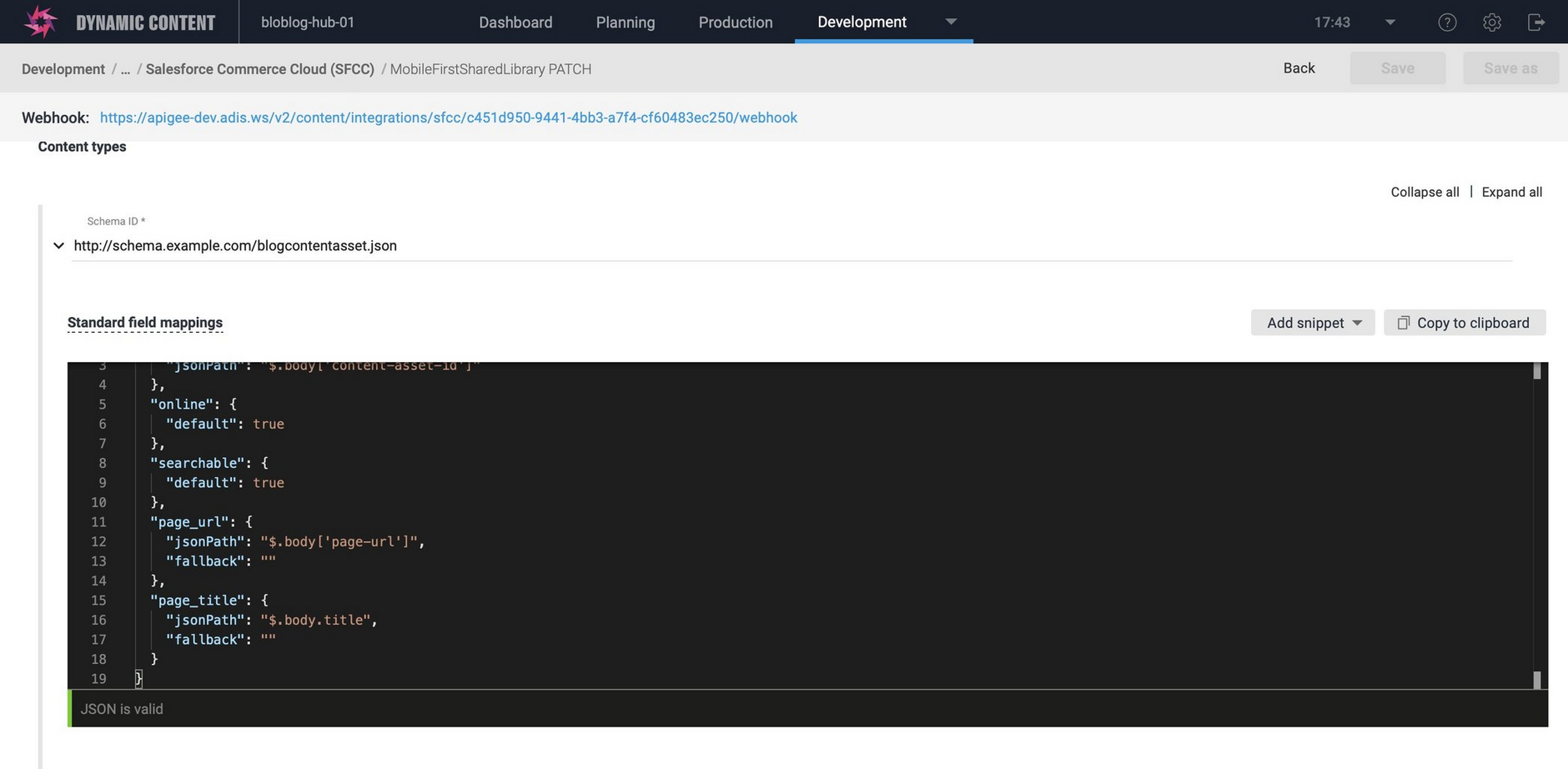
In this example, when a blog content item is published in Amplience CMS, the fields mapped from the content item will be updated in the content asset with the same ID.
Note: if a content asset with the same ID is not found in SFCC, then it will be created.