Schema examples: new features
These schemas demonstrate the new features of Next Generation Authoring. The schemas are included in our schema examples.
Try the interactive examples on this page
Edit the schemas to see how your changes affect the fields they generate.
Using the schema examplesLink copied!
To use the schemas:
- You must have Next Generation Authoring switched on.
- Choose "Content type schemas" from the "Development" menu and click the "Create schema" button.
- Choose "Start with an example".
- Select a schema from the "Next gen authoring" section and click "Use this schema".
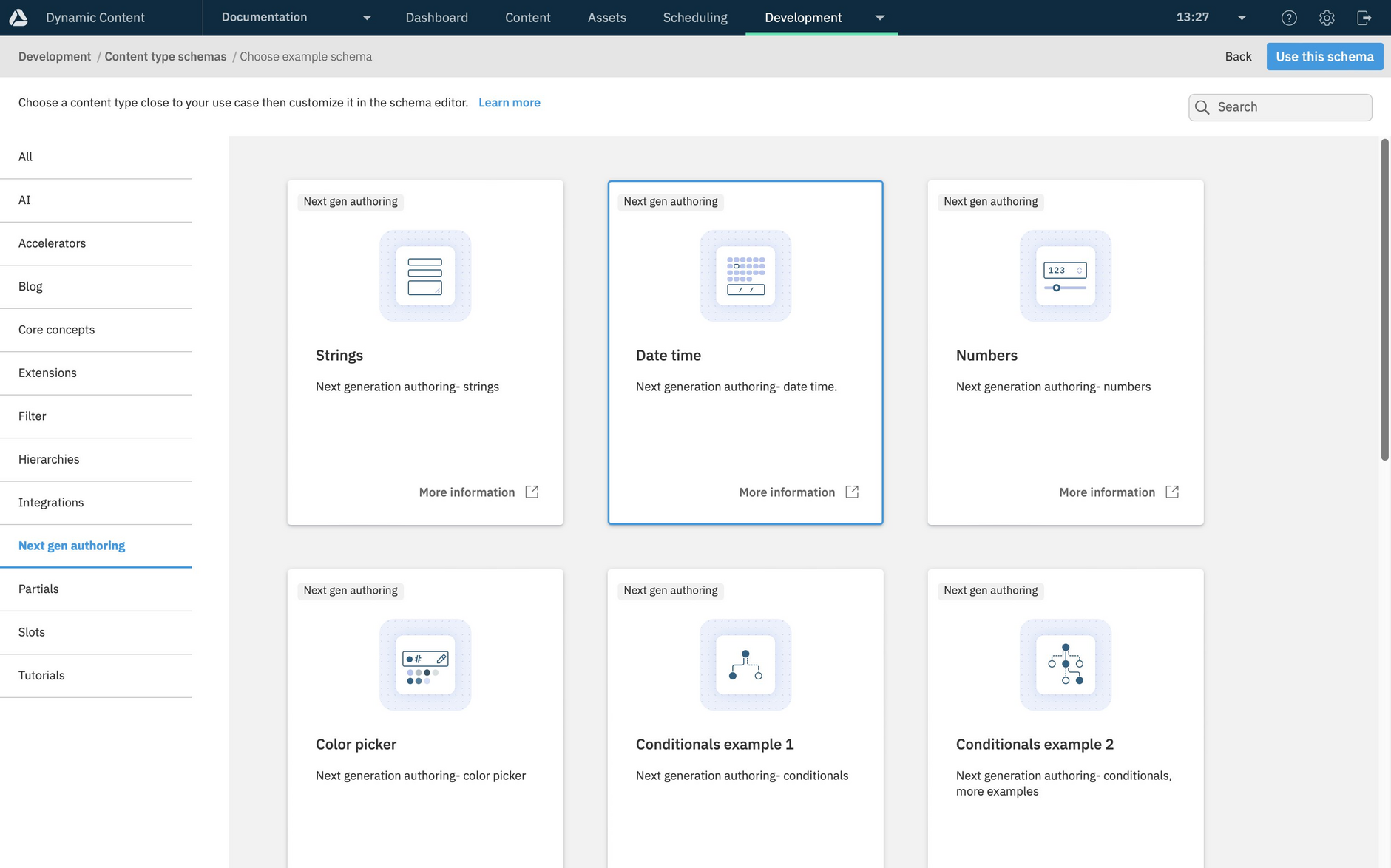
- Click "Create Schema" to add the schema to your hub and open it in the schema editor.
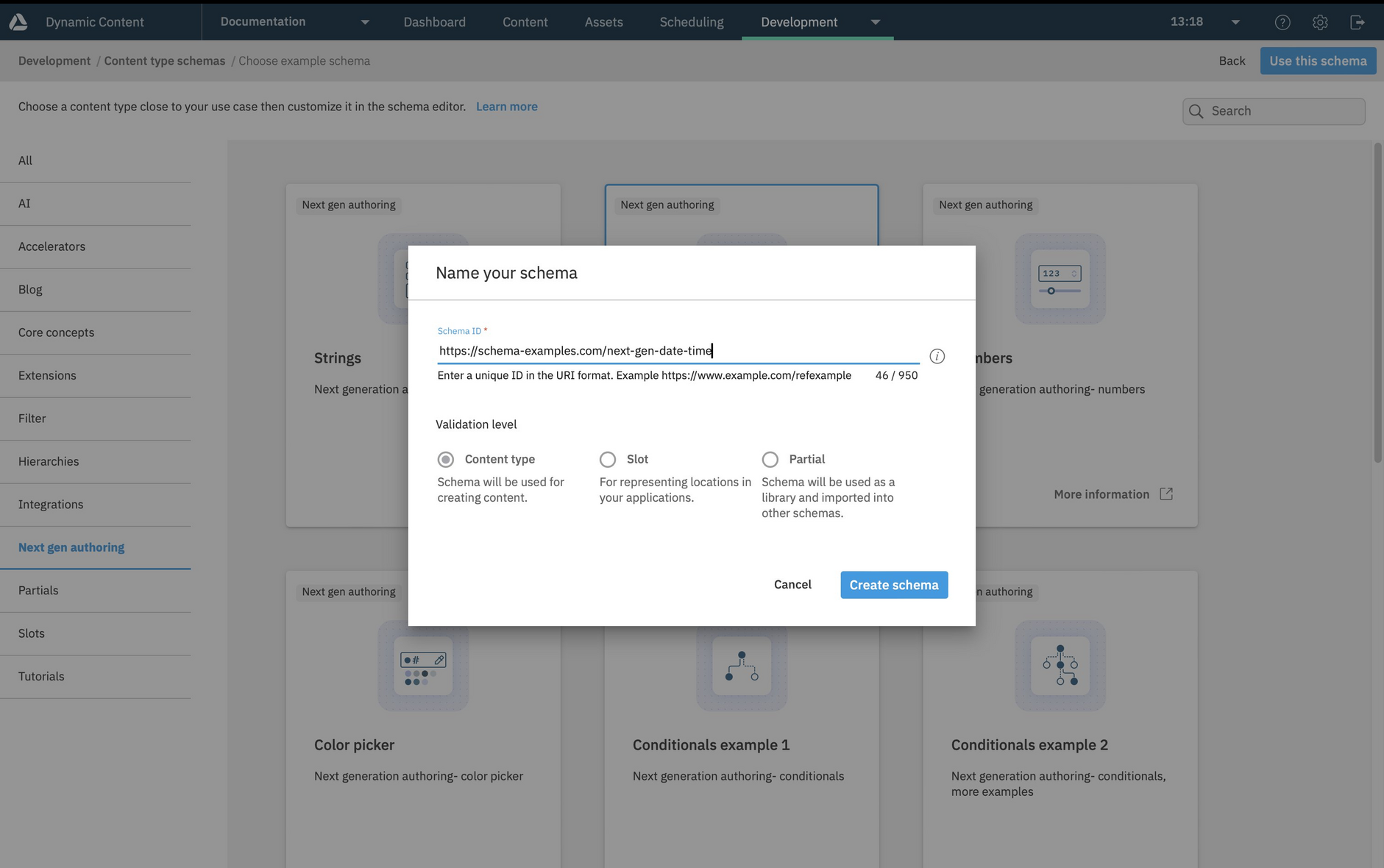
Once the schema has been created, you will need to register the schema as a content type from which you can create content.
StringsLink copied!
This example demonstrates the use of the components that can be used with properties of type string, including multiple line text and read only fields. Use of the component parameters is also demonstrated. See the input field component reference for more details.
Note
We've included the date time fields and the color picker in separate examples.
Date and timeLink copied!
This example demonstrates the use of user selectable date time, time input, date and time input components. It also shows how to set parameters. See the date time input fields component reference for more details.
NumbersLink copied!
This example demonstrates the use of components that can be used with properties of type integer or number, includes some component parameters, and shows the list of a slider and a dropdown list with labels.
See the input field component reference for more details.
Color pickerLink copied!
This example demonstrates how to customize the color picker using the available parameters.
colorpick1is configured to allow the user to choose colors in RGB format using the picker, but with the eye dropper turned offcolorpick2shows how to configure the picker for RGBA format and allow colors to be chosen using the picker, the eye dropper or from a list of swatchescolorpick3is configured to only allow colors to be chosen from a list of swatches
See color picker component reference for more details.
Conditionals: example oneLink copied!
This example demonstrates the use of conditionals.
-
A conditional is used to set the validation of the
addressCodeproperty based on the value selected for thevalueproperty. -
A conditional is used to determine whether the
dateproperty is shown or hidden based on the value of thehasDateproperty.
Conditionals: example twoLink copied!
This example shows the use of multiple conditional fields.
- condition1 will hide the
altTextproperty until an image has been added. - condition2 enables the author name field if a publication date is chosen. It sets the
authorNameto be readOnly ifdateis null. - condition3 uses the value of the
switchboolean property to show additional properties for an image or video. - condition4 will add additional fields for custom width and height if the value of the
dropListproperty indicates that a custom aspect ratio is selected. - condition5 adds additional fields for width, height and margin if any text is entered in the libraryIcon text field.
ValidationLink copied!
This example demonstrates one of the improved validation features: the contains keyword. In the example, the numbers array must contain an integer with a value of at least 10, while the strings array must contain a string with a length of 10 or more characters.
GridsLink copied!
This example demonstrates how to arrange related fields into a grid.
The image properties in this example schema are grouped together in a grid divided into 12 columns, with each field laid out using 6 columns, or half the available space.
Tip
Notice how in the example, the items are arranged horizontally, with each field taking up half the available space in the form.
TabsLink copied!
This example schema shows how to group related fields together into tabs.
Fields relating to image and video are organized into separate tabs.
Tabs: more paramsLink copied!
This is a more advanced example showing options for a banner, with the fields for an optional banner overlay shown in a separate tab.
This example shows how to use more tabs parameters, including setting the tab orientation to "vertical" (the default is "horizontal"). You can also set grow to true so that the tabs fill the space on the form (depending on the tabs orientation). Set variant to "outline" to show an outline around each selected tab.
Content palettesLink copied!
Example oneLink copied!
This example demonstrates how to create a content palette of multiple types of objects from which users can choose to add content.
In the schema shown below, the flexibleList property is an array that uses the oneOf keyword to define the objects that the user can choose from: rich text, an image link with alt text and a string that represents a link.
Tip
In the example, there are only 3 types of content to choose from, so on the form, buttons are provided for choosing the type of content to add.
Example twoLink copied!
In this more advanced content palette example, there are 5 objects defined in the flexibleList array property from which the user can choose to add content.
In the schema shown below, the icons field of the array params is used to specify the icons displayed in the content palette menu. The value defined in the const for each object is used to map the object to its icon.
Tip
In the example, there are 5 types of content to choose from, so on the form the content palette selection is displayed in a dropdown menu with icons for each type of content.
Color picker exampleLink copied!
In this content palette example, there are 4 color picker objects defined in the flexibleList array property. Each color picker has a different configuration of colors, as could be used to define a corporate color scheme.
As an object- choosing between 2 optionsLink copied!
This example demonstrates the use of content palettes to allow the user to choose one of two options, in this case either an internal or external link. The internal link must conform to the defined pattern while the external link must be a valid URI.
As an object- choosing between multiple optionsLink copied!
This example shows how to use a content palette to allow the selection between a basic configuration of the rich text editor and one with more options, and a choice of 1 from 4 different color schemes.
The matrix- question and answerLink copied!
This example shows an example of how to model a question and answer section using the matrix component.
The questions property is an array of questions and answers strings, with the title of each column defined in the params. In this example we're using text area properties to implement multi lines strings for the user input.
The matrix- buyers guideLink copied!
This example shows how to use the matrix to model a feature comparison buyers guide, in this case for bed linen.
The example includes an image property, together with a boolean and string fields. The idealFor property is markdown format and double clicking this field will open the rich text editor.